
The menu and the window
The app lives in the menu bar. Its menu shows the warnings, Start recording, one status line and Sync now. Everything else is in the My Plaud window, which has a Dock icon only while it is open.
The menu bar icon
The icon is Plaud’s arch with three bars.
| It shows | When |
|---|---|
| A ring | A job is running |
| An exclamation mark | A warning needs action |
| A dot and the elapsed time | A recording is being made on this Mac |
The menu
| Part | What it shows | Buttons |
|---|---|---|
| Warnings | Everything that needs attention, one line each. Absent when there is nothing | The fix for that warning: Log in, Sync now, Retry, Change…, Add key…, Diagnostics, Settings, Open System Settings, Remove |
| Recording | Start recording, with a small menu at its right end for “Audio and screen” and “Audio and window…”. While recording, a bar with a red dot, the elapsed time and the level | Start recording; while recording Pause or Resume, and Stop |
| Status | “Up to date”, “N things need you”, “No sync yet” or the running job, with the time of the last sync. While a job runs: its step and how far it is (“Downloading 2 of 5”, “Transcribing 1 of 3”, “Summarising 7 of 20”), a progress bar and the count done | Sync now; Cancel while a sync, Full check or Retry runs |
| Bottom | Open My Plaud (⌘O), Open archive, Quit My Plaud (⌘Q) |
Only one job runs at a time; the other buttons are disabled until it ends. Cancel finishes the recording in hand and then stops; the next sync does the rest.
The window
Open My Plaud in the menu opens it. So do ⌘, (on Settings), a click on a notification, the button of a warning, and opening the app again from Finder or Spotlight. Closing the window removes the Dock icon; the app keeps running in the menu bar.
The sidebar has four panes.
Overview
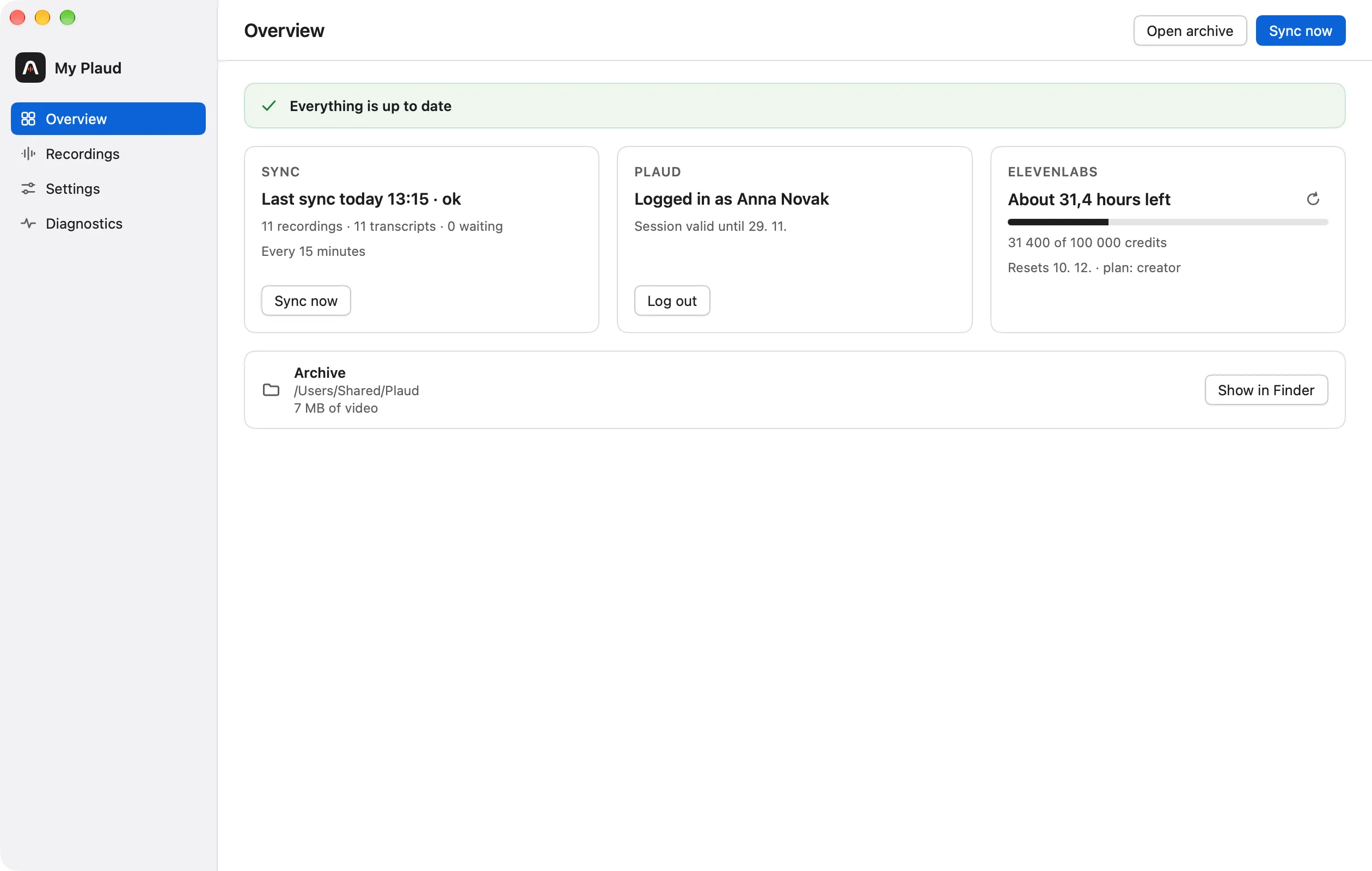
The warnings, or “Everything is up to date”, and three cards:
- Sync: the last sync and its result, the number of recordings, transcripts and recordings waiting, and the interval. While a job runs, the same progress as the menu, with Cancel.
- Plaud: the account name and when the session ends, with Log in or Log out.
- ElevenLabs: the hours of transcription left, the credits, the reset date and the plan; “No API key” when none is stored.
Below them, the archive folder and how much of it is video, with Show in Finder.
Recordings
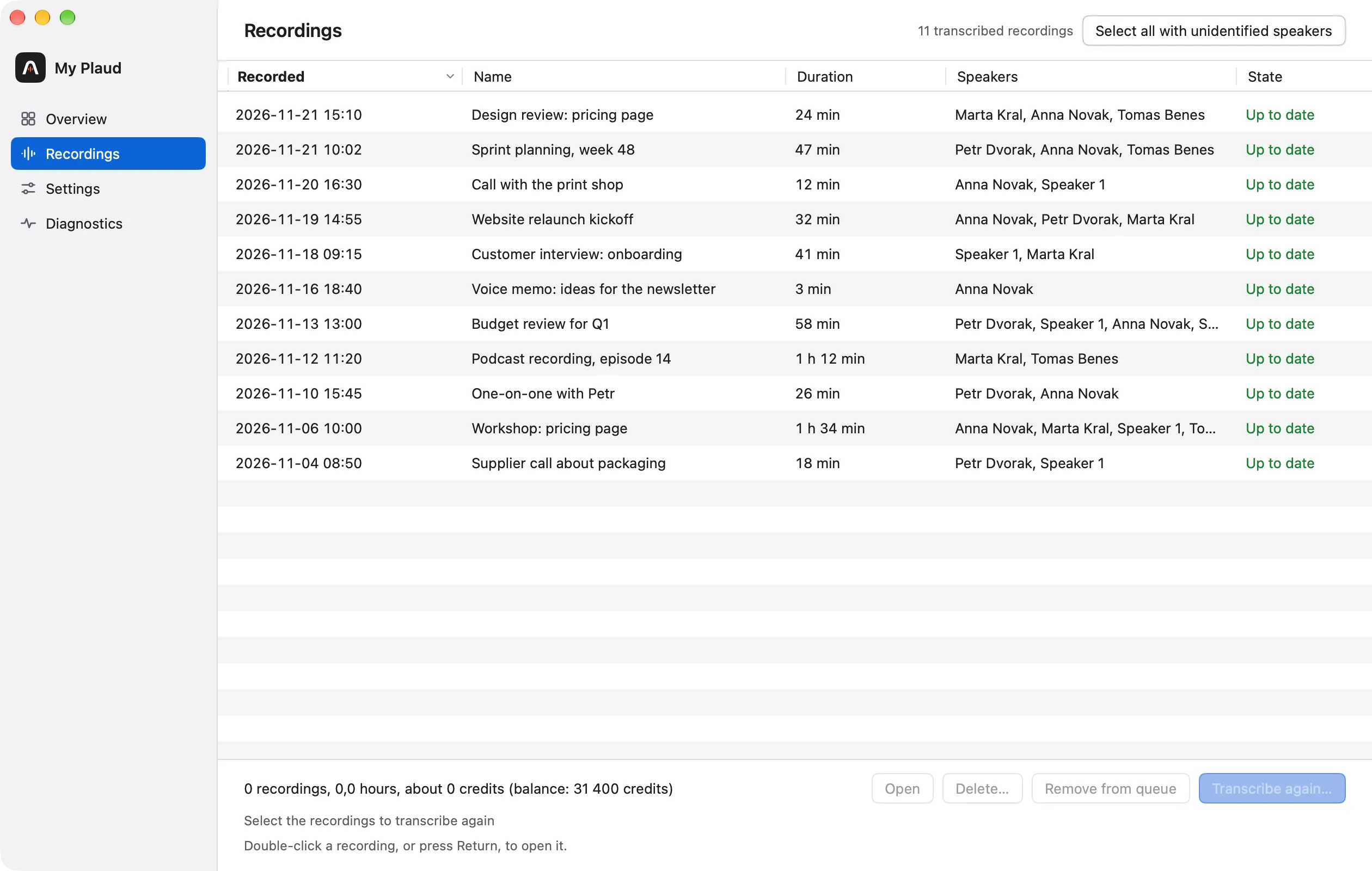
Every transcribed recording, by date, name, duration, speakers and state. Double-click one (or select it and press Return, or press Open) to see its detail.
- Speakers names the speakers from the one who speaks longest to the one who speaks least; hover for the whole list.
- State says what is left for the recording: “Waiting for cleanup”, “Waiting for summary”, “Retry at 14:05”, “Cleanup failed”, “Summary failed”, “Paused”, “Queued”, “Transcription failed” or “Up to date”. The recording being worked on shows “Transcribing…”, “Cleaning up…” or “Summarising…”.
The buttons under the list work on the selected recordings: Open, Delete…, Remove from queue and Transcribe again…. Select all with unidentified speakers selects the recordings in which someone is still “Speaker N”.
Plaud’s own titles are not shown: the name is the one you gave the recording, or the generated one.
Settings
One form for the archive, the API keys, transcription and cleanup. See Settings.
Diagnostics
One line per check, with Run again, Full check and Copy log command. See Settings.